
CLI Reference
Banyan uses three binaries. Install only what each machine needs.
| Binary | Role | Install on | Requires sudo |
|---|---|---|---|
banyan-engine | Control plane (state store, gRPC server, scheduling) | Engine node | Yes (all commands) |
banyan-agent | Agent (task execution, container management) | Agent nodes | Yes (all commands) |
banyan-cli | Client (up, down, scale, secret, engine, agent, deployment, container, events, logs, dashboard) | Any machine | init and login |
banyan-engine
Run on your control plane node.
init
One-time setup. Creates /etc/banyan/ config directories, enables IP forwarding, generates a WireGuard keypair, and walks you through an interactive setup wizard.
sudo banyan-engine init| Flag | Default | Description |
|---|---|---|
--data-dir | /var/lib/banyan | Data directory |
The wizard generates a WireGuard keypair for authentication and asks:
- Etcd setup — choose Managed (Banyan runs etcd for you) or External (connect to your own cluster).
- For External etcd: endpoints (e.g.
http://10.0.0.1:2379) and connection security (None, Username & Password, TLS, or mTLS).
The engine’s public key is displayed during init. Share this key with agents and CLI clients that want to use the encrypted WireGuard control tunnel. See Authentication for details.
Service management
The install script creates a systemd service. After init, manage the engine with:
sudo systemctl enable --now banyan-engine # start + enable on bootsudo systemctl stop banyan-engine # stopsudo systemctl status banyan-engine # check statussudo journalctl -u banyan-engine -f # view logsstart
Start the Engine in the foreground. Useful for development and debugging. In production, use systemctl instead.
sudo banyan-engine startRuns in the foreground. Stop with Ctrl+C.
| Flag | Default | Description |
|---|---|---|
--data-dir | /var/lib/banyan | Data directory |
--store-backend | (from config) | Store backend (etcd) |
--store-address | (from config) | Etcd endpoint address |
--grpc-port | 50051 | Engine gRPC server port |
--vpc-cidr | 10.0.0.0/16 | VPC network CIDR range |
--registry-port | 5000 | Embedded OCI registry port |
stop
Stop the Engine (foreground mode). For systemd, use sudo systemctl stop banyan-engine.
sudo banyan-engine stopstatus
Show Engine status (agents, deployments, containers). Connects to the configured store backend.
sudo banyan-engine status| Flag | Default | Description |
|---|---|---|
--store-backend | (from config) | Store backend (etcd) |
--store-address | (from config) | Etcd endpoint address |
banyan-agent
Run on each agent node.
init
One-time setup. Creates /etc/banyan/ config directories, enables IP forwarding, verifies containerd and nerdctl are installed, generates a WireGuard keypair, and walks you through an interactive setup wizard.
sudo banyan-agent init| Flag | Default | Description |
|---|---|---|
--data-dir | /var/lib/banyan | Data directory |
The wizard generates a WireGuard keypair and asks:
- Engine host — hostname or IP of the Banyan engine (e.g.,
192.168.1.10). - Engine gRPC port — default
50051. - Node name — unique name for this agent (default: hostname).
- Engine WireGuard public key — required, displayed during
banyan-engine init. - Tags — comma-separated tags for environment isolation (optional).
After init, the agent’s public key is displayed. Copy it to the engine’s whitelisted keys directory. See Authentication for details.
If a keypair and engine host are already configured, the wizard skips and shows the current setting.
Pre-write a config file to skip the interactive wizard (useful for automation):
# Write config with engine connection detailscat > /etc/banyan/banyan.yaml <<EOFagent:    engine_host: 192.168.1.10    engine_port: "50051"    tags:        - stagingEOF
# Init generates a keypair and skips prompts since config existsbanyan-agent init
Service management
The install script creates a systemd service. After init, manage the agent with:
sudo systemctl enable --now banyan-agent # start + enable on bootsudo systemctl stop banyan-agent # stopsudo systemctl status banyan-agent # check statussudo journalctl -u banyan-agent -f # view logsstart
Start the Agent in the foreground. Useful for development and debugging. In production, use systemctl instead.
sudo banyan-agent start --agent-name worker-1The engine endpoint is read from /etc/banyan/banyan.yaml (set during init). Runs in the foreground. Stop with Ctrl+C.
| Flag | Default | Description |
|---|---|---|
--data-dir | /var/lib/banyan | Data directory |
--engine | (from config) | Engine gRPC endpoint override (e.g., 192.168.1.10:50051) |
--agent-name | hostname | Name for this agent. Must be unique in the cluster. |
--pid-file | /var/run/banyan-agent.pid | Agent PID file |
--api-port | 50052 | Agent gRPC server port (used for log streaming from engine) |
--api-address | Agent API address override (e.g., 192.168.1.10:50052) |
stop
Stop the Agent (foreground mode). For systemd, use sudo systemctl stop banyan-agent.
sudo banyan-agent stopstatus
Show the Agent’s connection status.
sudo banyan-agent status| Flag | Default | Description |
|---|---|---|
--engine | (from config) | Engine gRPC endpoint override |
banyan-cli
Run on any machine to manage deployments. The CLI needs sudo for init and login (both create WireGuard kernel interfaces). All other commands run as your normal user.
init
One-time setup. Generates a WireGuard keypair, creates the encrypted control tunnel to the engine, and saves the connection config. Requires sudo because creating a WireGuard kernel interface needs root.
sudo banyan-cli initThe wizard generates a WireGuard keypair and asks:
- Engine host — hostname or IP of the Banyan engine.
- Engine gRPC port — default
50051. - CLI name — unique name for this CLI client (default:
cli-<hostname>). - Engine WireGuard public key — required, displayed during
banyan-engine init.
After init, the CLI’s public key is displayed. Copy it to the engine’s whitelisted keys directory. See Authentication for details.
Run this once on any machine where you want to use banyan-cli commands. If a keypair and engine host already exist in the config, you’ll be asked whether to overwrite.
login
Re-establish the WireGuard control tunnel after a machine restart. Reads the existing config and private key — no prompts, no key regeneration. Requires sudo.
sudo banyan-cli loginThe WireGuard tunnel is a kernel interface that doesn’t survive reboots. After a restart, run login to reconnect. If the tunnel is already active, the command exits immediately.
If no config exists yet, run init first.
up
Deploy or redeploy an application from a manifest.
banyan-cli up -f banyan.yamlSends the deployment to the Engine, then waits for agents to run all containers. Exits when the deployment reaches running or failed status.
Redeployment is automatic. If the application is already running, Banyan uses a blue-green strategy: new containers start alongside old ones, and old containers are torn down only after the new deployment is healthy. If the new deployment fails, old containers keep running. See Redeployment for details.
Per-service deployment. Pass service names as arguments to redeploy only those services. Per-service deploys use the same blue-green strategy as full deploys — new containers start alongside old ones and old containers are torn down only after the new deployment is healthy. Zero downtime. Services not listed are untouched.
depends_on is validated: if a service being deployed depends on another service, that dependency must already be running or be included in the same deploy command.
Services with build: are built locally, pushed to the Engine’s embedded OCI registry, and deployed with the registry-prefixed image name so agents can pull them.
| Flag | Short | Default | Description |
|---|---|---|---|
--file | -f | banyan.yaml | Path to the manifest file |
--dry-run | false | Validate the manifest without deploying | |
--no-wait | false | Submit and exit immediately | |
--tags | Deployment tags for agent matching (comma-separated) |
Examples:
# Deploy an applicationbanyan-cli up -f banyan.yaml
# Redeploy after code changes (old containers are replaced automatically)banyan-cli up -f banyan.yaml
# Redeploy only the web servicebanyan-cli up -f banyan.yaml web
# Redeploy web and api togetherbanyan-cli up -f banyan.yaml web api
# Deploy to staging agents onlybanyan-cli up -f banyan.yaml --tags staging
# Validate without deployingbanyan-cli up -f banyan.yaml --dry-run
# Submit and return immediatelybanyan-cli up -f banyan.yaml --no-wait
down
Stop and remove services from a deployment.
banyan-cli down --name my-appCreates stop_and_remove tasks for each running container and waits for agents to complete them. By default, stops all services. Pass service names as arguments to stop specific ones.
| Flag | Short | Default | Description |
|---|---|---|---|
--name | Application name to stop | ||
--file | -f | Path to manifest (reads app name from file) | |
--no-wait | false | Submit stop tasks and exit immediately | |
--tags | Deployment tags for matching (comma-separated) |
Examples:
# Stop all services by namebanyan-cli down --name my-app
# Stop all services (read name from manifest)banyan-cli down -f banyan.yaml
# Stop specific services onlybanyan-cli down --name my-app web db
# Stop a tagged deploymentbanyan-cli down --name my-app --tags staging
scale
Adjust replica counts for services in a running deployment, without redeploying.
banyan-cli scale my-app api=5 web=3Containers are added or removed individually — no blue-green, no new deployment ID. Scale-up creates new containers on available agents. Scale-down follows a graceful drain: remove from proxy, remove DNS, wait stop_grace_period, then stop.
| Argument | Description |
|---|---|
<app-name> | Name of the deployed application |
<service=replicas> | One or more service=count pairs |
| Flag | Default | Description |
|---|---|---|
--tags | Deployment tags for matching (comma-separated) |
api: 2 → 5 replicas (scaling up) web: 4 → 3 replicas (scaling down)Examples:
# Scale the API service to 5 replicasbanyan-cli scale my-app api=5
# Scale multiple services at oncebanyan-cli scale my-app api=5 web=3
# Scale a tagged deploymentbanyan-cli scale my-app api=5 --tags stagingsecret
Manage encrypted secrets stored on the engine.
secret create
Create or update an encrypted secret.
banyan-cli secret create DB_PASSWORDEnter secret value: ********Secret "DB_PASSWORD" created.| Flag | Default | Description |
|---|---|---|
--value | Secret value inline (visible in shell history) | |
--from-file | Read secret value from a file |
If neither flag is provided, the CLI prompts for the value with hidden input. Creating a secret that already exists updates its value.
# From a filebanyan-cli secret create TLS_KEY --from-file ./server.key
# Inline (for scripting — value visible in process list)banyan-cli secret create API_KEY --value "abc123"
secret list
List all secrets (names and timestamps, no values).
banyan-cli secret listNAME CREATED UPDATED------------------------------------------------------------------------API_KEY 2h ago 2h agoDB_PASSWORD 5d ago 1h agosecret get
Show secret metadata. Add --reveal to include the decrypted value.
banyan-cli secret get DB_PASSWORDSecret: DB_PASSWORD Created: 2026-03-27T10:00:00Z Updated: 2026-03-27T15:30:00Zbanyan-cli secret get DB_PASSWORD --revealSecret: DB_PASSWORD Created: 2026-03-27T10:00:00Z Updated: 2026-03-27T15:30:00Z Value: s3cret-passw0rd| Flag | Default | Description |
|---|---|---|
--reveal | false | Show the decrypted secret value |
secret delete
Delete a secret. Blocked if any running deployment references it.
banyan-cli secret delete DB_PASSWORDSecret "DB_PASSWORD" deleted.If the secret is in use:
Error: cannot delete secret "DB_PASSWORD": referenced by deployment "my-app" (service: api)See the Secrets guide for the full workflow.
engine
Show the engine status, resource usage, and a cluster summary.
banyan-cli engineEngine================================================== Status: running Uptime: 2h15m CPU: 12.5% (4 cores) Memory: 1.0GB / 4.0GB Disk: 10.0GB / 50.0GB
Cluster Summary-------------------------------------------------- Agents: 2/2 connected Deployments: 1/1 running Containers: 5/5 healthy Tasks: 12 completed, 0 failed| Flag | Short | Default | Description |
|---|---|---|---|
--output | -o | Output format (json for machine-readable output) |
agent
List all agents or show detail for a specific agent.
# List all agentsbanyan-cli agentNAME STATUS CONTAINERS CPU MEM TAGS---------------------------------------------------------------------------worker-1 connected 3 45.0% 25.0% zone:us-eastworker-2 connected 2 30.0% 25.0% zone:us-west# Show detail for a specific agentbanyan-cli agent worker-1Agent: worker-1================================================== Status: connected API Address: 10.0.1.10:50052 VPC Subnet: 10.0.1.0/24 Tags: zone:us-east Containers: 3 Last Seen: 5s ago Created: 2h ago
Resources-------------------------------------------------- CPU: 45.0% (8 cores) Memory: 2.0GB / 8.0GB Disk: 20.0GB / 100.0GB| Flag | Short | Default | Description |
|---|---|---|---|
--output | -o | Output format (json for machine-readable output) |
deployment
List all deployments or show detail for a specific one. The argument matches against deployment name or ID.
# List all deploymentsbanyan-cli deploymentNAME STATUS HEALTHY SERVICES TAGS AGE--------------------------------------------------------------------------------my-app running 5/5 3 env:prod 30m# Show detail for a specific deploymentbanyan-cli deployment my-appDeployment: my-app============================================================ ID: dep-001 Status: running Healthy: 5/5 Tags: env:prod Created: 30m ago Updated: 1m ago
Services------------------------------------------------------------ web Image: nginx:alpine Replicas: 2 Ports: 80:80 api Image: myapp/api:v1 Replicas: 2 Ports: 8080:8080 Depends: db db Image: postgres:16 Replicas: 1 Ports: 5432:5432
Containers------------------------------------------------------------ NAME STATUS AGENT IMAGE my-app-web-0 running worker-1 nginx:alpine my-app-web-1 running worker-2 nginx:alpine my-app-api-0 running worker-1 myapp/api:v1 my-app-api-1 running worker-2 myapp/api:v1 my-app-db-0 running worker-2 postgres:16| Flag | Short | Default | Description |
|---|---|---|---|
--output | -o | Output format (json for machine-readable output) |
container
List all containers or show detail for a specific one.
# List all containersbanyan-cli containerNAME SERVICE AGENT DEPLOYMENT STATUS--------------------------------------------------------------------------------my-app-web-0 web worker-1 my-app runningmy-app-web-1 web worker-2 my-app runningmy-app-api-0 api worker-1 my-app runningmy-app-api-1 api worker-2 my-app runningmy-app-db-0 db worker-2 my-app running# Show detail for a specific containerbanyan-cli container my-app-web-0Container: my-app-web-0================================================== Status: running Service: web Agent: worker-1 Deployment: my-app Image: nginx:alpine Ports: 80:80 Replica: 0 Created: 30m ago Updated: 28m ago| Flag | Short | Default | Description |
|---|---|---|---|
--output | -o | Output format (json for machine-readable output) |
events
List recent cluster events.
banyan-cli eventsTIMESTAMP SEVERITY TYPE MESSAGE------------------------------------------------------------------------------------------2026-03-01 14:30:05 info deployment.updated Deployment my-app updated2026-03-01 14:29:05 info container.started Container my-app-web-0 started on worker-12026-03-01 14:25:05 warning container.stopped Container my-app-api-0 stopped on worker-1| Flag | Short | Default | Description |
|---|---|---|---|
--tail | 50 | Number of events to show | |
--output | -o | Output format (json for machine-readable output) |
Examples:
# Show the last 10 eventsbanyan-cli events --tail 10
# Get events as JSON (for CI/CD scripts)banyan-cli events -o jsonlogs
Stream container logs by name.
banyan-cli logs <container-name>The CLI requests logs from the Engine via gRPC. The Engine proxies them from the agent running the container.
| Flag | Short | Default | Description |
|---|---|---|---|
--follow | -f | false | Follow log output (like tail -f) |
--tail | 0 | Number of lines from the end (0 means all) | |
--agent-id | Agent running the container. When provided, the engine connects directly to that agent instead of scanning. Useful in multi-agent clusters. |
Examples:
# View all logs for a containerbanyan-cli logs my-app-web-0
# Follow logs in real timebanyan-cli logs my-app-web-0 -f
# Show last 100 lines and followbanyan-cli logs my-app-web-0 -f --tail 100
# Specify the agent (skips scanning, connects directly)banyan-cli logs my-app-web-0 --agent-id worker-1
dashboard
Monitor your cluster from the terminal or a web browser.
Web dashboard (opens in your browser):
banyan-cli dashboard --web Banyan Dashboard
Local: http://localhost:3000 Engine: http://10.200.0.1:9091
Press Ctrl+C to stopThe web dashboard is embedded in the CLI binary. It starts a local server, proxies API calls to the engine, and opens your browser. Pages include Overview, Agents, Deployments, Containers, Engine, Events, and Logs. Press Ctrl+K for the command palette.
Terminal dashboard (TUI):
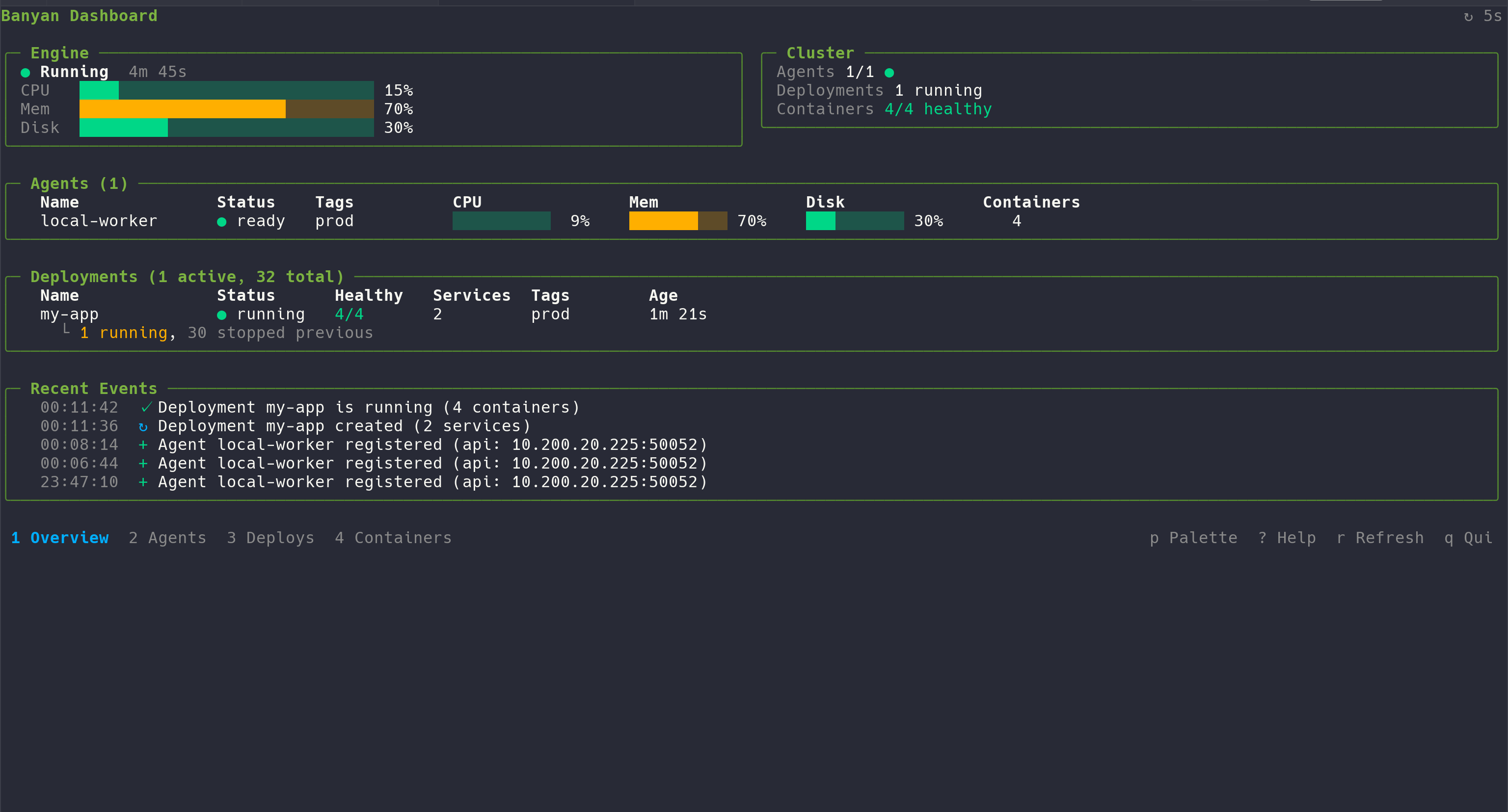
banyan-cli dashboardThe TUI auto-refreshes and provides six views you can switch between with number keys:
| View | Key | Shows |
|---|---|---|
| Overview | 1 | Engine health, cluster summary, agents, deployments, and recent events — all on one screen |
| Agents | 2 | All connected agents with CPU, memory, disk usage, and container count |
| Deploys | 3 | All deployments grouped by name, with health status and version history |
| Containers | 4 | Flat list of all containers across the cluster |
| Engine | 5 | Detailed engine metrics — CPU, memory, disk with progress bars |
| Events | 6 | Full event log — every cluster event from newest to oldest |
Navigate lists with arrow keys or j/k, press Enter to drill into agent or deployment details, and Esc to go back. Press / to filter any list view, e to export the current list to CSV, and p to open the command palette. The palette groups actions into sections — page-specific actions (Filter, Export) appear only on list views, alongside navigation and global commands. Press ? for keyboard shortcuts.
| Flag | Default | Description |
|---|---|---|
--web | false | Start the web dashboard instead of the terminal TUI |
--port | 3000 | Web dashboard port (used with --web) |
--refresh | 5s | Auto-refresh interval (TUI mode) |
--snapshot | false | Export a self-contained HTML snapshot |
-o, --output | Output file for snapshot |
Examples:
# Web dashboard in your browserbanyan-cli dashboard --web
# Web dashboard on a custom portbanyan-cli dashboard --web --port 8080
# Terminal TUI with default 5s refreshbanyan-cli dashboard
# Terminal TUI with slower refreshbanyan-cli dashboard --refresh 30s
# Export a one-time HTML snapshotbanyan-cli dashboard --snapshot